The error "Your browser is blocking the webcam. Please enable the webcam from your browser settings and try again" means your Camera is not accessible to the browser. This can happen if Camera permission is denied either at the system/device level or browser level.
| System Level Settings: Note: The system level settings are only to be followed if you are using Chrome browser. 1. Open System Settings on your Device and navigate to Privacy & Security 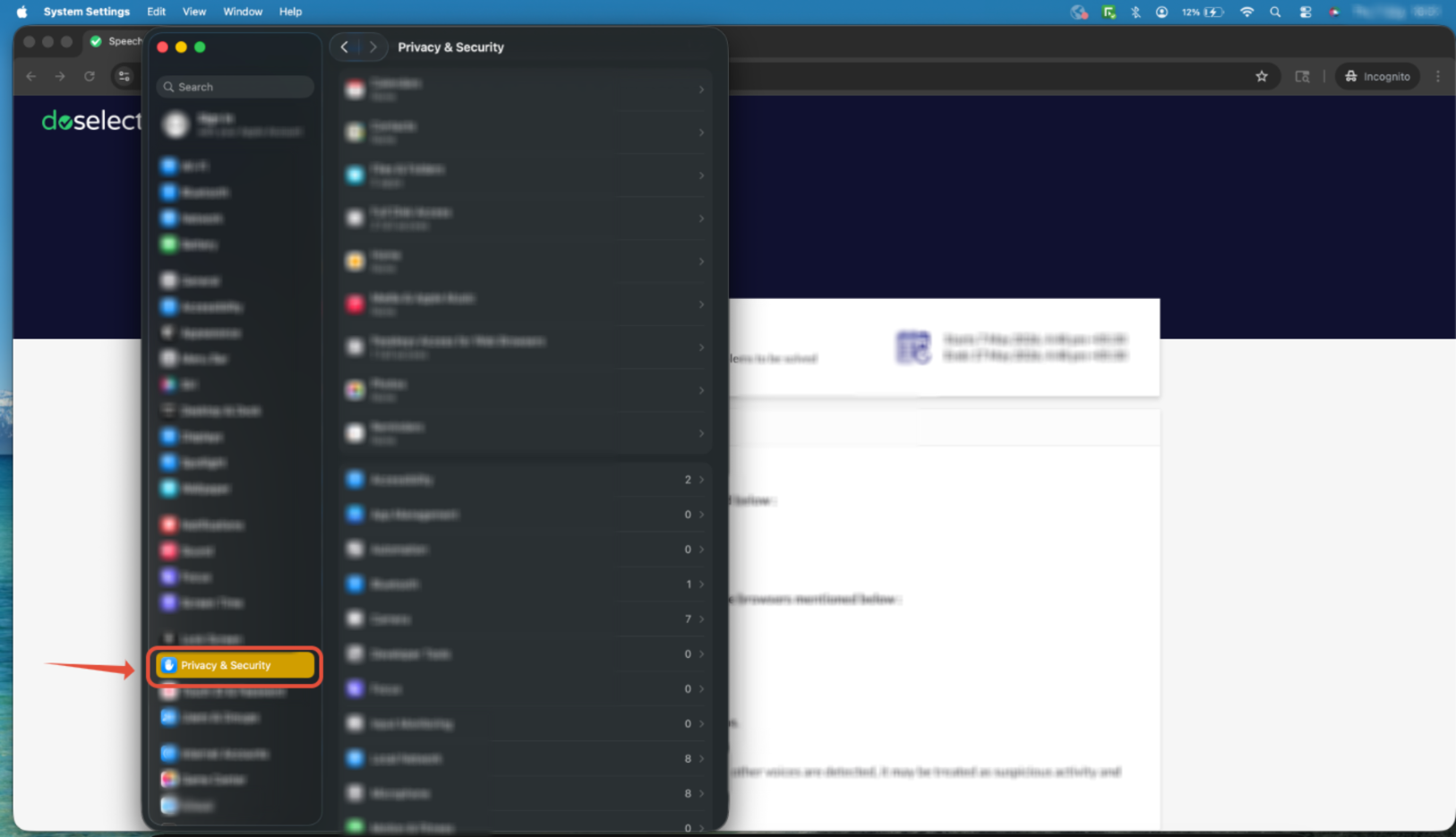 |
2. Click on Camera 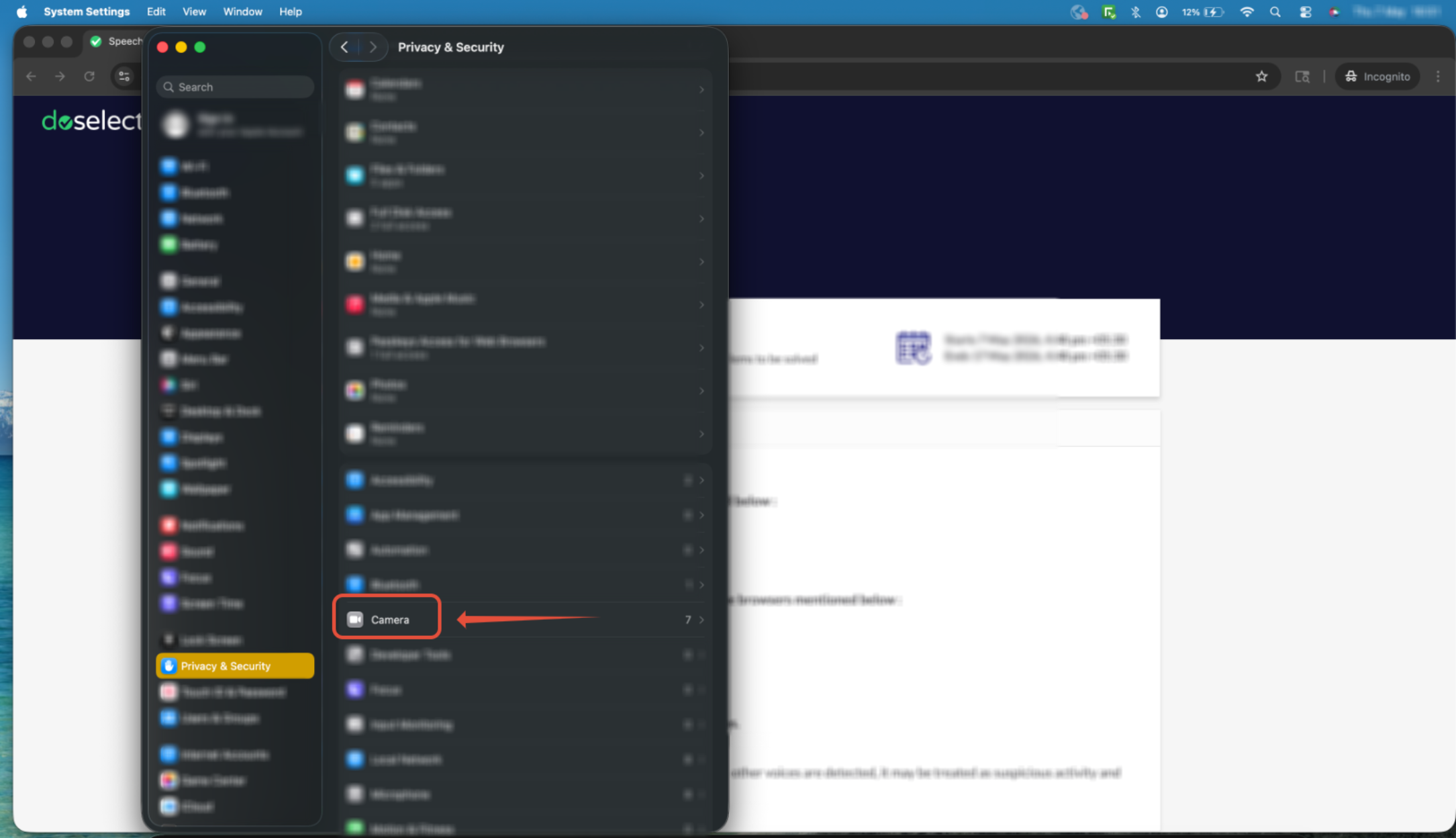 |
3. Check if the access is allowed for your browser (Google Chrome), if not Allow it 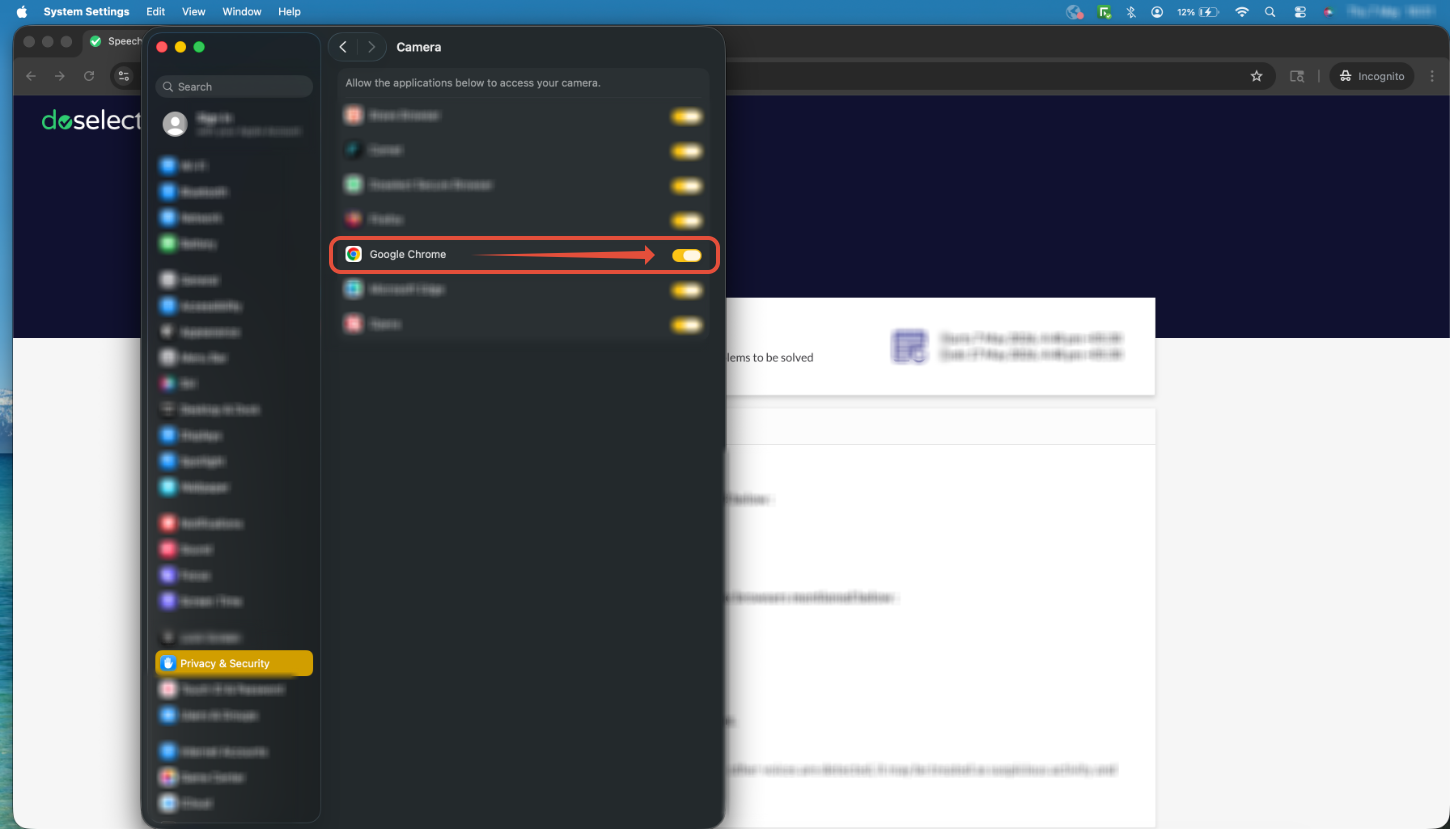 |
Browser Level Settings:
| Safari | Google Chrome |
1. Click on Page Settings icon in the browser address bar.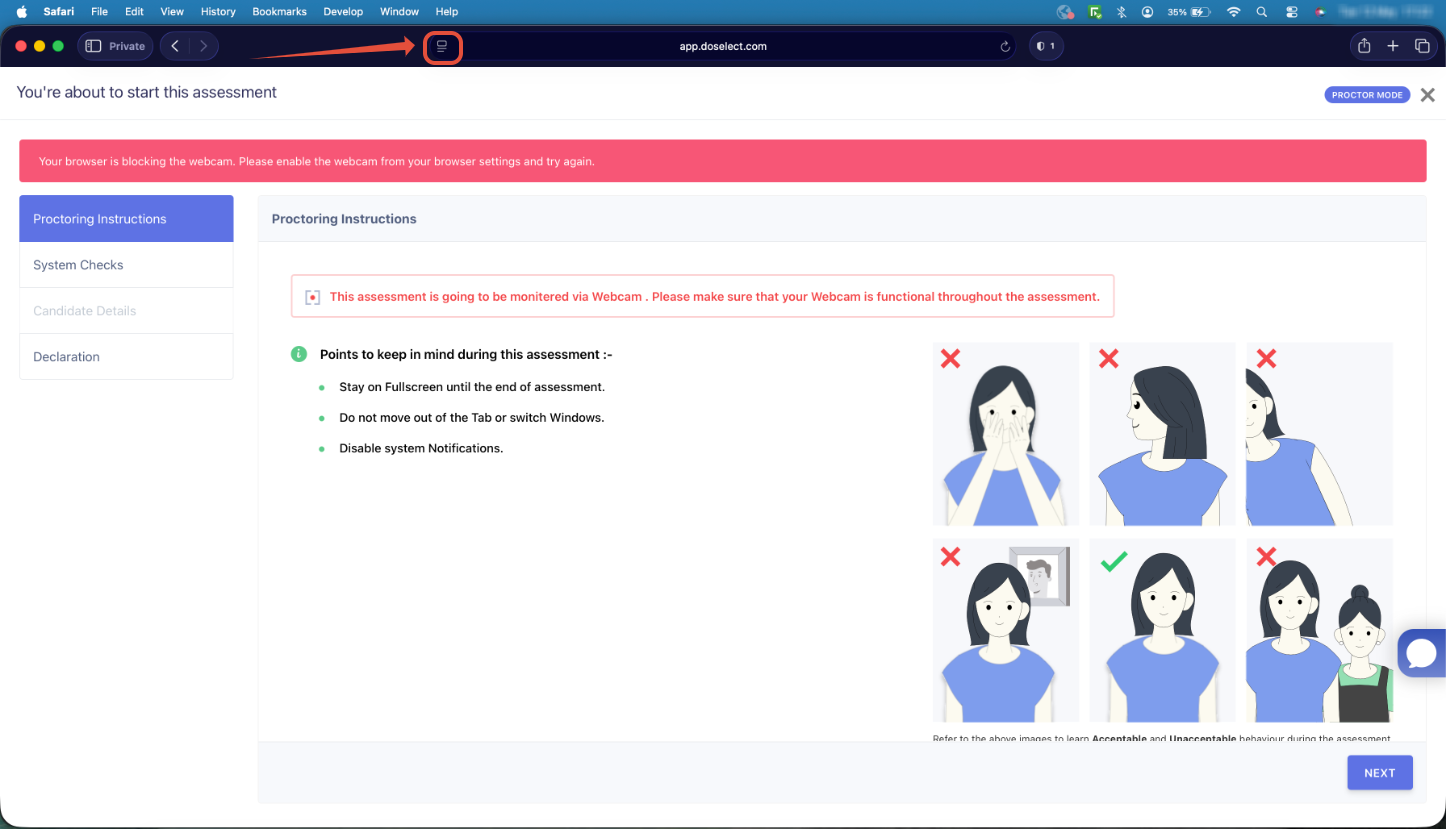 | 1. Click on the Tune icon in the browser address bar.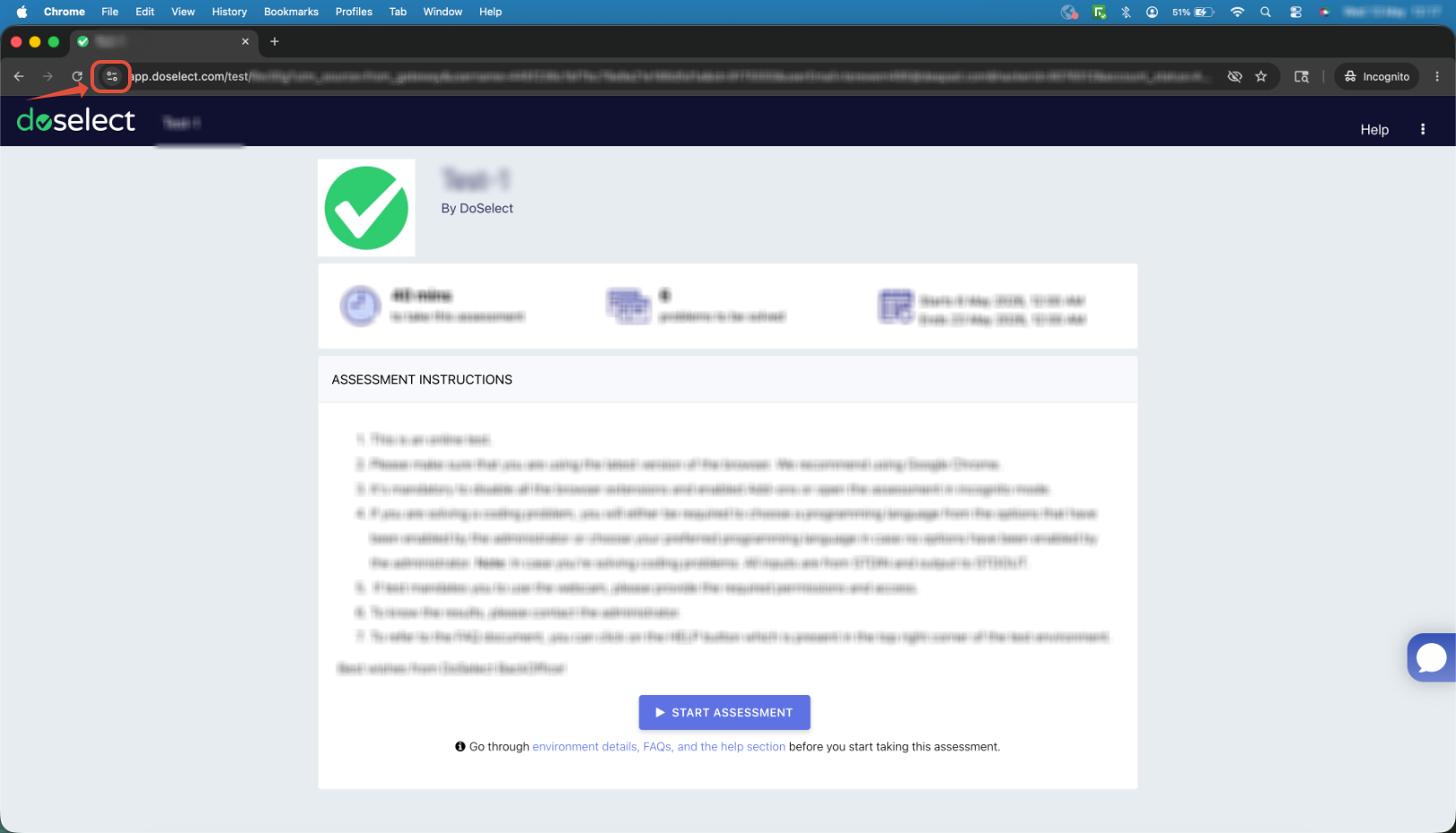 |
2. Click on Website Settings.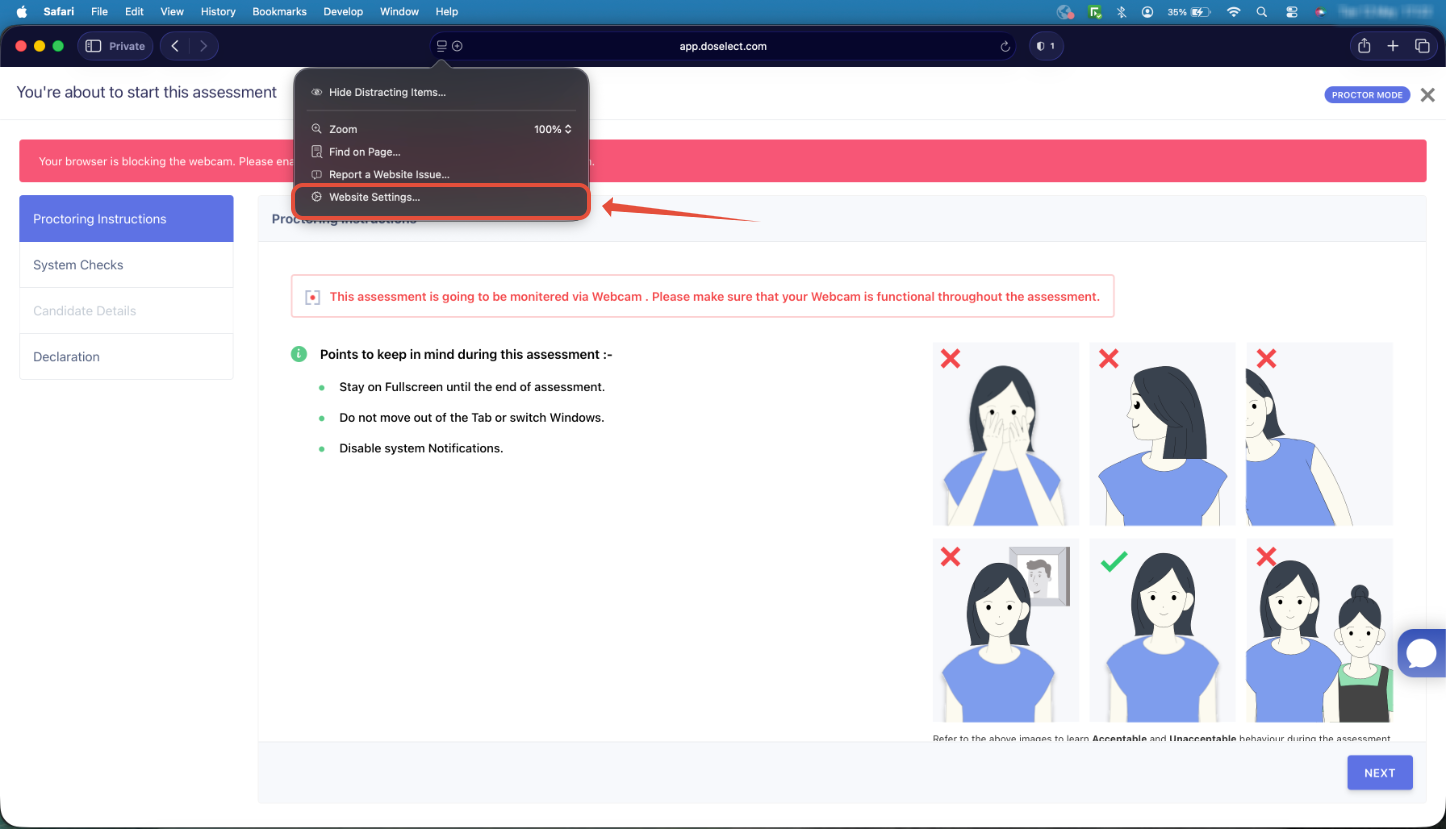 | 2. Turn on the Radio button for Camera.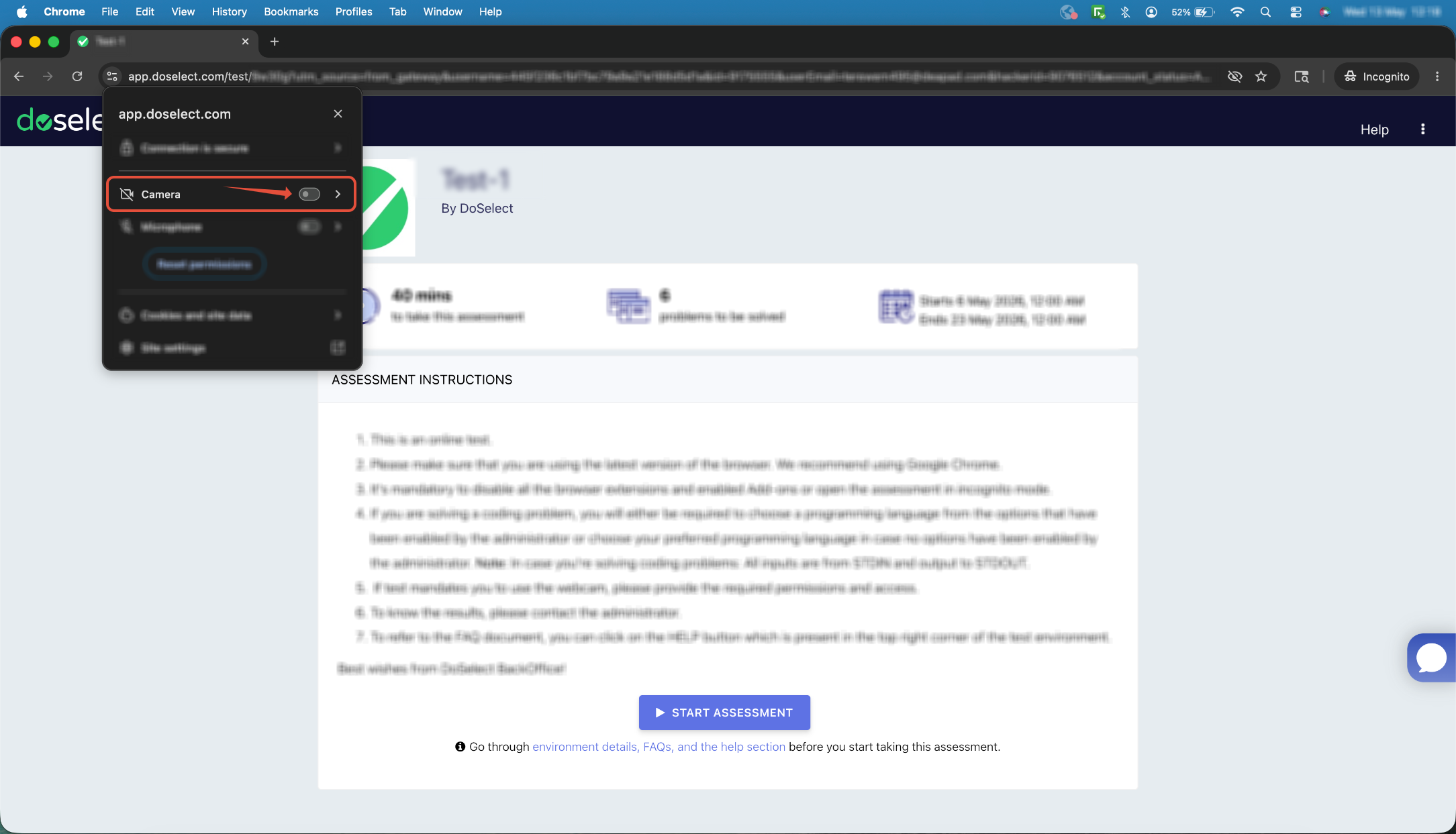 |
3. Click on Camera options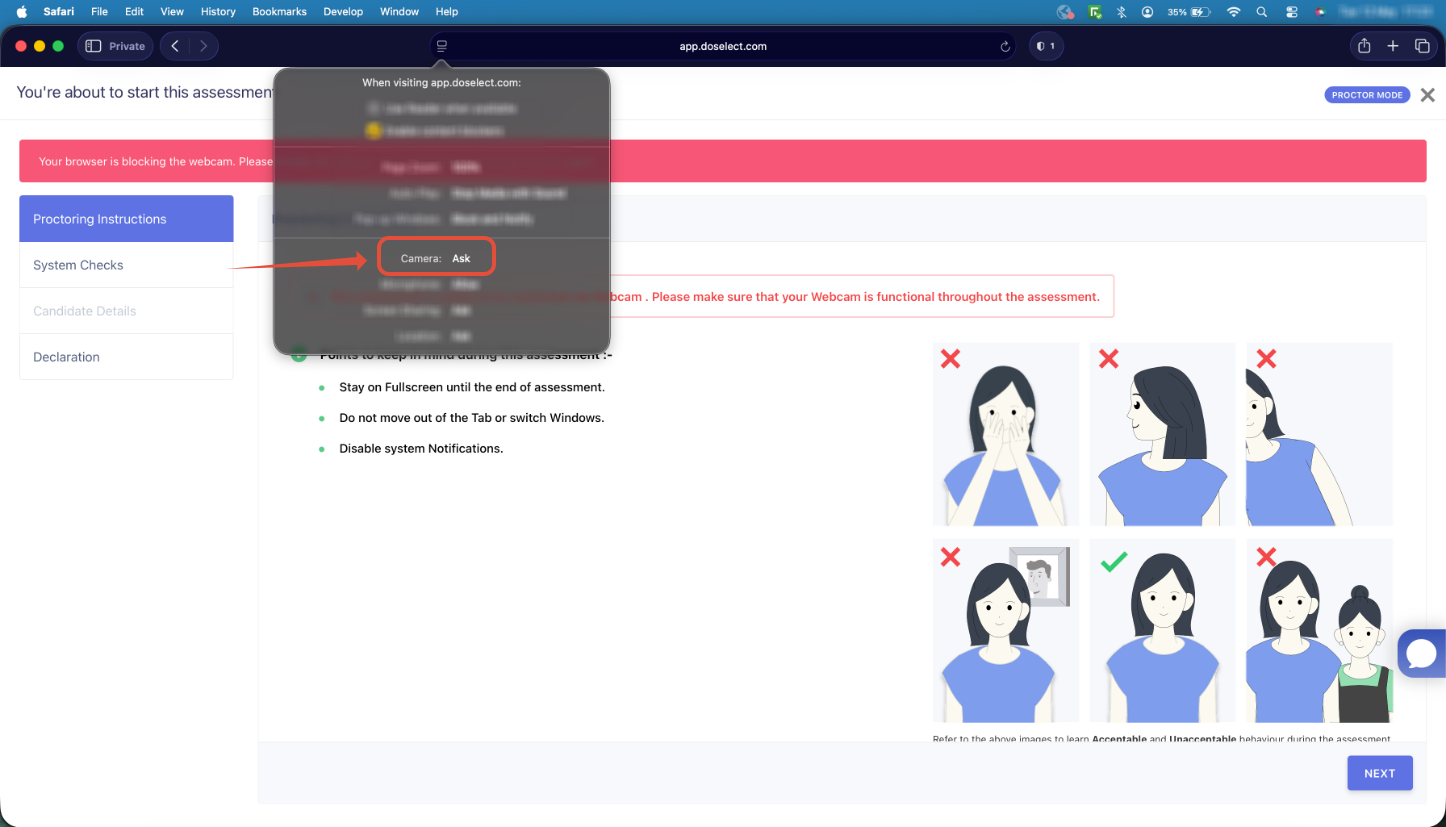 | 3. Ensure that the Camera access is turned ON.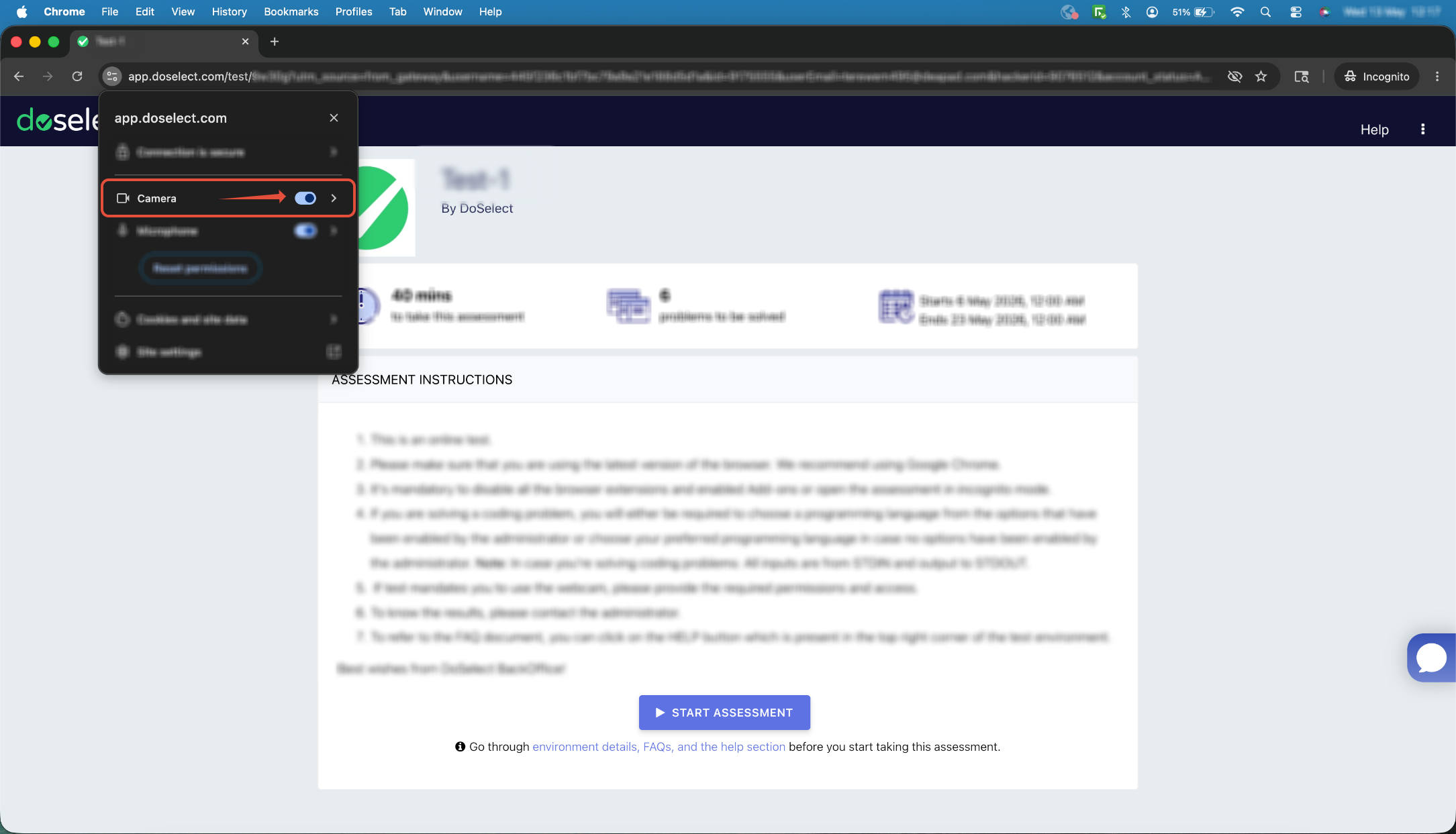 |
4. Change the permission to Allow.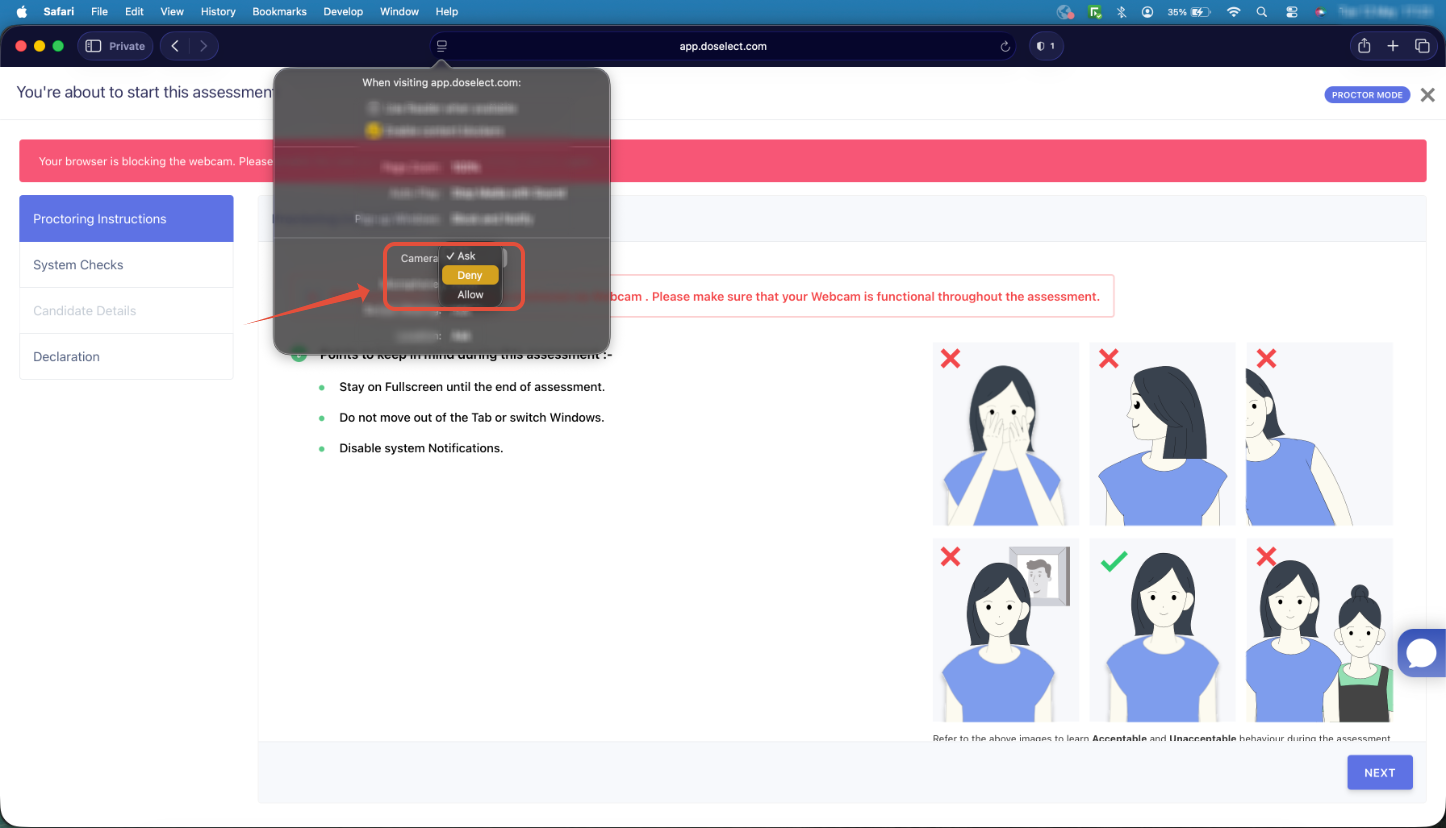 | 4. Reload the page and continue with the test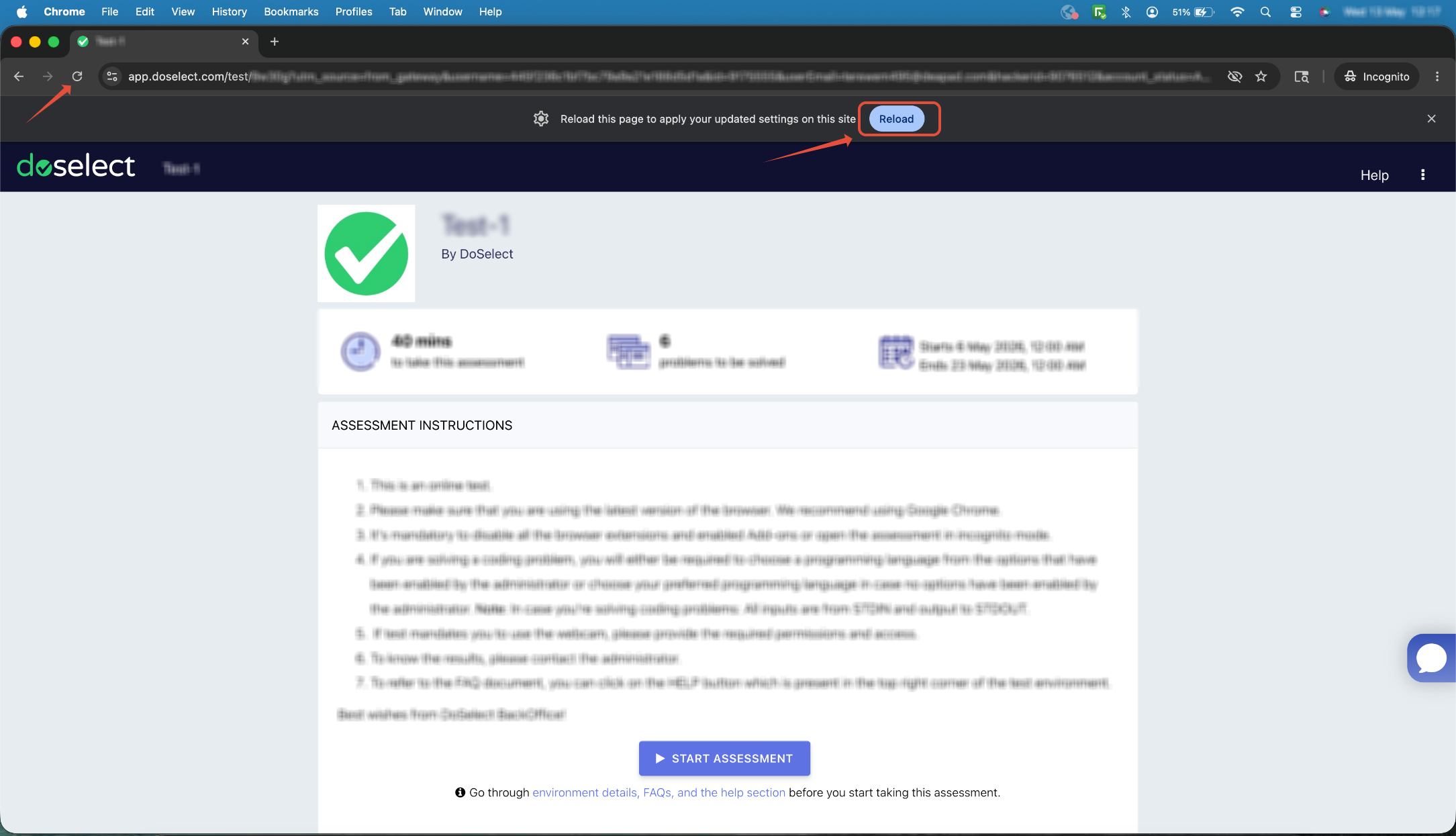 |
5. Ensure that the camera access is enabled and set to Allow.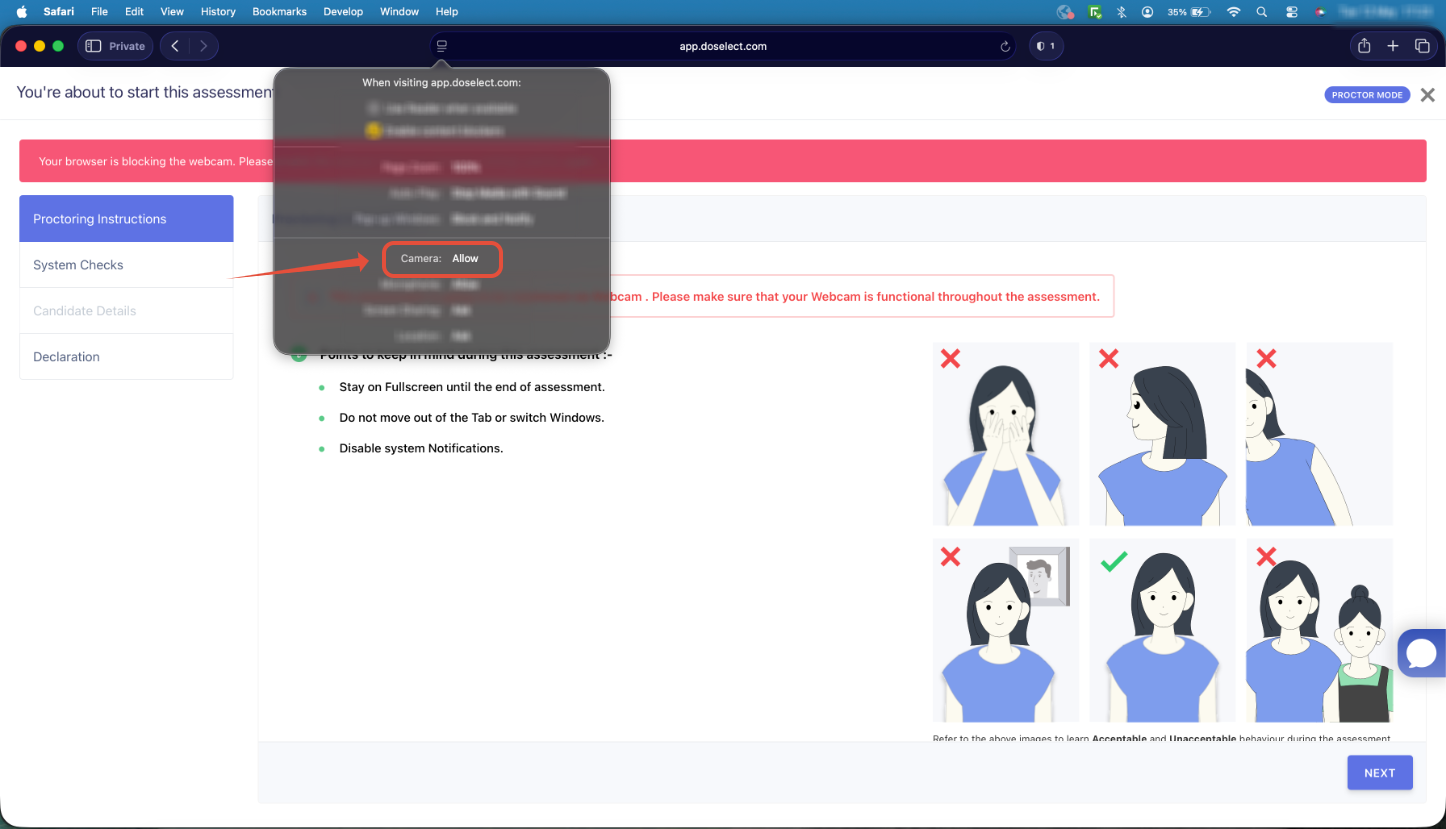 | |
6. Reload the browser page and continue with the test.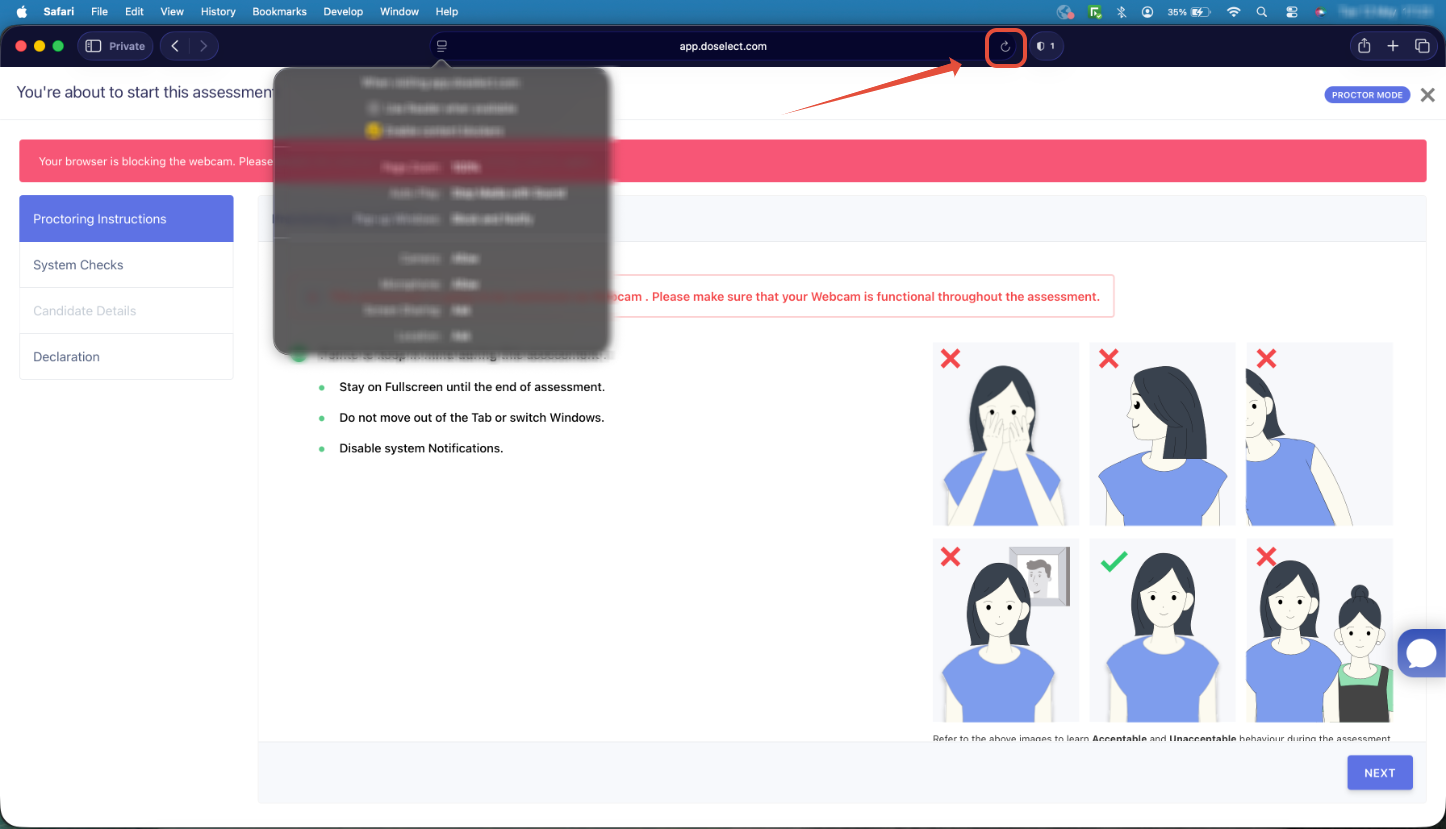 |
Was this article helpful?
That’s Great!
Thank you for your feedback
Sorry! We couldn't be helpful
Thank you for your feedback
Feedback sent
We appreciate your effort and will try to fix the article